Pranay Rana: Debugging
Showing posts with label Debugging. Show all posts

Wednesday, February 12, 2014

Help Yourself in Debugging (Part-3) StackTrace and Caller Information attribute

Read below post related to same topics
  1. Help yourself in Debugging by using Call Stack and Immediate Window  
  2. Help Yourself in Debugging (Part-2) using Breakpoint/Tracepoint
This post is about two feature in C# Caller Information Attribute and StackTrac class , which are helpful to get information at runtime from where the call came i.e. both provide information about caller. As purpose of both is same but there is significant difference between both of them. Information provided by both can be used by developer application to provide trace information.

Before start with StackTrace and Caller information following image shows structure of the code.


So the project is divided in three layer UI, Business and DataLayer.

Front Layer code 

class Program
    {
        //Program p = new Program();

        public int i = 10;
        public static void Main(string[] args)
        {
            try
            {
                var str = (new BusinessEmployee()).GetEmployeeList();
                Console.WriteLine(str);
                Console.ReadLine();
            }
            catch (Exception ex)
            {
                global::System.Windows.Forms.MessageBox.Show(ex.Message);
            }

        }
    }
As you see in above code Font layer calling “GetEmployeeList” method to get list of all employee.

BusinessLayer code 
 
    public class BusinessEmployee
    {
        private readonly DataEmployee dataEmployee;

        public BusinessEmployee()
        {
            dataEmployee = new DataEmployee();
        }

        public  void GetEmployeeList()
        {
            dataEmployee.GetEmployeeList();
        }
    }
In this layer Business class calling DataLayer to get employee list from the database.

DataLayer code

    public class DataEmployee
    {
        //Data layer class for employee 
        public  void GetEmployeeList()
        {
            //code goes here for retiving from DATABASE
        }
    }
This layer return employee list, but for the example its returning exception.


StackTrace

Class in C# part of System.Diagnostics name space which provide information same as Call Stack window (Read more about Call stack window ) at runtime.

To understand it better way lets consider change in above code in DataLayer
        //Data layer class for employee 
        public string GetEmployeeList()
        {
            //// get call stack
            StackTrace stackTrace = new StackTrace(true);

            StringBuilder sb = new StringBuilder();

            foreach (StackFrame frame in stackTrace.GetFrames())
            {

                sb.AppendLine(" Method Name: " + frame.GetMethod().Name + " File Name:" + frame.GetMethod().Module.Name + " Line No: " +                   
                                   frame.GetFileLineNumber());
            }

            return sb.ToString();
        }

As you can see in code it create StackTrace class and when creating new object of class "true" is passed as argument to the constructor of StackTrace class for capturing the file name, line number, and column number.
After the object get created GetFrames method is usd to get information about each frame(each method call is represented by one frame) and finally each frame details is appeded using StringBuilder, then it displayed by front end.

Following is output get recieved once the code run


So output prints each call made from one layer to antoher if you see above code call is coming from the fron layer to database layer.

Advatage 
  • StackTrace provide detail informaiton about from where call came from the beggining till end. This is one resason devloper can use StackTrace when there is need to get i.e. trace details level information. 
  • Also StackTrace frame also provide control on the caller method, provide assebmbly from where call is coming. 
Disadvantage
  • Inline method  is not get listed when code compiled in Relase mode, which is get listed when code compiled in Debug mode.
         To understand it cosider below code changes in front layer code.


 Now if you compile code in Debug mode with below configuration


It will generate below output for you , where you can see four line i.e. on extra line of calling to method "GetEmployeeList1".


So debug list all method calls But Now if you compile code in Release mode with below configuration


It will generate below output for you , where you can see three line.  The line of calling method "GetEmployeeList1" is missing.


So StackTrace doesn't list out methods which is converted to inline method by compiler. if you want to list out you can mark method as [MethodImpl(MethodImplOptions.NoInlining)]


if devloper mark method as [MethodImpl(MethodImplOptions.AggressiveInlining)] than the method also no get list in debug
So StackTrace information can be spoof by making method inline.
  • As StackTrace provide every minute detail, StackTrace will show the full trace right into the core MS sourced assemblies, and will reveal details about what technologies you're using, and possible versions as well. This gives intruders valuable info on possible weaknesses that could be exploited. So always careful before displaying this information and put security on this.
Advantage over Caller Information attribute
  • It provides minute details which is not possible with Caller Inormation attribute.
  • Line number, Filename and Method Name information is given by StackFrame which cannot be changed by devloper But in case of Caller Information attribute devloper can spoof by passing wrong value in caller information parameter.


Caller Information attribute

This is new feature introduce in C# 5.0. and attributes are part of System.Runtime.CompilerServices namespace. These attributes required to be added as optional parameter in the method for which need to get caller information.
 Example
Accessiblity ReturnType MethodName (Type parameterName,....,         
                                    [CallerMemberName] string memberName = "",
                                    [CallerFilePath] string sourceFilePath = "",
                                    [CallerLineNumber] int sourceLineNumber = 0

Name Type Description
CallerMemberName string Provide caller method Name
CallerFilePath string Provide caller method File Name
CallerLineNumber int Provide caller Line number in File from where method get called


Note :
Caller of the method can aslo pass this value as this attribute added as parmeter to method.

Example when calling method which is decorated by caller information attribute


To understand this let do change in the DataLayer method like this
        
         //Data layer class for employee 
        public string GetEmployeeList([CallerMemberName] string memberName = "",
                                     [CallerFilePath] string fileName = "",
                                    [CallerLineNumber] int lineNumber = 0)
        {

            return " Method Name: " + memberName + " File Name:" + fileName + " Line No: " + lineNumber;
        }
 So running above code provide below output


Advantage
  • Information of caller attribute cannot be spoofed till devloper pass informaton in method parameter.
  • There is no rutime cost for this i.e. it doesnt affect performance of the code as attribute are compile time.
  • Very hepfull to find out when call is coming from some unknonw location like in case of "PropertyChange". 
Disadvatage
  • Information of caller can be spoofed by devloper if devloper pass wrong information in the parameter of the caller information.
  • There is only one StacFrame i.e. it will give information about who called method(immediate caller of method) but doesnt provide detail information like StackTrace. 
  • It's part of C# 5.0 so its not working with older version of framework. 
Advantage over StackTrace
  • As its complied time there is no rutime cost like StackTrace ( we need to create object of StackTrace runtime to get information).
  • Information provided by attribute cann not be Spoofed by method attributes.
Do Comment if the information is missing or wrong.

Referenced from 

Monday, January 27, 2014

Getting Exact Location of Exception in C# Code

Post is about locating exact location of the Exception in the code. There is always problem for the developer to locate exact location from where Exception raised, because of that it difficult for the developer what actually went wrong. Most of the time problem occurs when there is too many libraries referenced i.e. used in project.

To understand let’s consider below example:
In following example application is divided in three layers
  1. Font end - Layer though which user interact with application and Displays data to end user of application.
  2. Business -Layer which is having business logic, code to call datalayer and the info classes which transport between font and data layer.
  3. Data - Layer which interact with database and supply data to business layer.
Front Layer code 

class Program
    {
        //Program p = new Program();

        public int i = 10;
        public static void Main(string[] args)
        {
            try
            {
                (new BusinessEmployee()).GetEmployeeList();
            }
            catch (Exception ex)
            {
                global::System.Windows.Forms.MessageBox.Show(ex.Message);
            }

        }
    }
As you see in above code Font layer calling “GetEmployeeList” method to get list of all employee.

BusinessLayer code 
 
    public class BusinessEmployee
    {
        private readonly DataEmployee dataEmployee;

        public BusinessEmployee()
        {
            dataEmployee = new DataEmployee();
        }

        //Business layer class for employee 
        public  void GetEmployeeList()
        {
            dataEmployee.GetEmployeeList();
        }
    }
In this layer Business class calling DataLayer to get employee list from the database.

DataLayer code

    public class DataEmployee
    {
        //Data layer class for employee 
        public  void GetEmployeeList()
        {
            throw new Exception("Not able to fetch employee");
        }
    }
This layer return employee list, but for the example its returning exception.

Now if you run above code by putting it into respected layer, then when exception thrown by the actual code debugger break execution in the front layer code. Below image shows same thing.


So it becomes difficult for the developer what went wrong if there is actual complex code is there.

Solution
 In Visual studio there is option as given in below image that allows to break debugging at the point i.e. at the code from where exception is coming.


Once you clicked on menu option it will open up dialog box where you can mark tick on “Common Language Runtime Exception” as in below image and click ok.


Now if you run same code than debugger will stop at exact location from where exception is coming, you can also see below image.


So breaking at exact location from where error is coming you can find out which part is actually causing problem and help to resolve error easily.


Conclusion
Visual studio option to locate exception also very helpful when there is multiple threads doing operation and throws exception. Also locate exceptions dialog provide other option that is also help full when you are using JavaScript, com component etc. that you can try by yourself.

Monday, November 18, 2013

Help Yourself in Debugging (Part-2) using Breakpoint/Tracepoint

Read Part 1 : Help yourself in Debugging by using Call Stack and Immediate Window
In this post I am going to discuss about the “BreakPoint” which is one of the most used feature by developer to debugging application by breaking execution of program runtime at certain point. I am going to describe the feature provided in visual studio for breakpoint and how it’s useful for debugging code easily.

What is Breakpoint?
Breakpoint is feature provided in Microsoft Visual Studio which allows breaking execution of code at runtime when debugging application.

For Example:

When you click on side of the code in visual studio it setup break point in you code as displayed in above image. So when you start execution code it will break execution at this point.


BreakPoint Menu (Option for the Break)


Above image display the context-menu for breakpoint i.e breakpoint menu. Following describe the all the option one by one.
  1. Delete Breakpoint
  2. This option of the breakpoint menu allows removing breakpoint.
  3. Disable Breakpoint
  4. This option of the breakpoint menu allows disabling breakpoint, so the breakpoint just get disable and become gray. Useful when developer just want to execute code without stopping at breakpoint and later on enable when want to use it back.
  5. Location…
  6. This menu option allows setting break point at given location i.e. at given line in source code file.


    When click on the menu it display dialog that provide information about source code file, line number in code and character. This dialog allows changing line and character information.

    For Example:


    Change line number to 26 in the in dialog than it breakpoint change to line number 26.


  7. Condition…
  8. When this option clicked it below dialog get displayed which has two options.
    • (A).   IS true
    • This option allows setting condition for breakpoint, so according to this execution during debugging get stopped at breakpoint i.e. breakpoint get hit when condition satisfied.
      Fox Example:


      As in above image condition set is “i==1000” that means this breakpoint get hit when this condition is true i.e. satisfied.

      This is very helpful when you want to stop execution of the application when certain condition met specially as in example loop having many number of element and want to stop at given location.

      Once condition set breakpoint displayed as below.


      Breakpoint changed to read icon having + sign in it. When mouse get over on breakpoint visual studio display information related to breakpoint with condition in tooltip.
    • (B).   Has changed
    • This option allows breaking execution of code at breakpoint when there is change in the variable or object.
      For Example:


      Over here variable “i” is entered in the dialog i.e. if the value of variable “i” get changed than execution of program get stopped at breakpoint.

      Below image shows the tooltip on breack point once condition set.


      When this option utilize than in breakpoint context menu condition option get check as in below image.


  9. Hit Count…
  10. This option display count number of time breakpoint hit when executing program.


    This dialog box has three options which allow to set hit count and if the hit count matches than program execution get stop at breakpoint. Each option is self-explanatory you can see in following image.


  11. Filter…
  12. This option allow to set condition related to “Machinename and Process” according to which breakpoint get hit. Following image explain more detail about it.


  13. When Hit…
  14. This option allows setting the message than get print to output window when program executions pass the breakpoint.

    This option converts breakpoint to Tracepoint i.e. so the developer can do tracing of the import variable or things by printing message on the output window when code at trace point get executed.
    For Example:


    As in above image to read value of the variable developer created message that get printed on output window each time code in for loop get executed.

    You can read the text in dialog which also provides information about how to provide information in the textbox so that it gets print to output window.

    Once developer press ok by setting the tracing message breakpoint get display like square as in below window.


    So when this program gets executed in visual studio, messages get printed to output window as shown in below image.


  15. Edit Labels…
  16. This option allows setting label for your breakpoint. So it display dialog like this.


    This is helpful when developer exporting breakpoint from visual studio, help to remember how important breakpoint it via label, create of useful breakpoint by using same name etc.
  17. Export…
  18. This option allows exporting breakpoint set by developer.


    This exported breakpoint information get saved as “XML” as show in above image. Exported XML file for breakpoint look as below


    This option is helpful when developer want to export breakpoint and save it as XML than remove it. When there is need to same breakpoint he/she can load same breakpoint by loading XML file using Debug window of Visual studio.
BreakPoint window
Breakpoint/tracepoint set by developer in code is get displayed by this window. This window also displays breakpoint with other information.

Following is way which shows how one can start breakpoint window.


So one can either use debug menu and start breakpoint window or make use of short cut Ctrl+D,B.

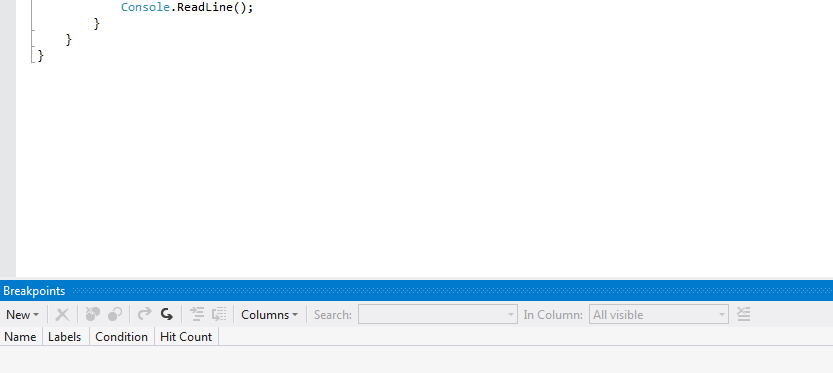
Following is image of breakpoint window.


This window also has toolbar which allows following, which is also supported by breakpoint menu discussed above.
  1. Set new breakpoint
  2. Remove breakpoint
  3. Delete all breakpoint
  4. This option allows to delete all breakpoint which is selected in breakpoint grid.
  5. Enable/Disable breakpoint
  6. Export breakpoint
  7. Import breakpoint
  8. This option is not part of the breakpoint menu; it is used for importing breakpoint/tracepoint.


    When this button clicked by developer, visual studio open file browser window to browse xml file for breakpoint / tracepoint.


    So after loading this file breakpoint/tracepoint get set again in the code.


  9. Go to Source Code
  10. Go to Diassembly
  11. Columns
  12. This tool menu allows to set number of column in the below grid i.e. in breakpoint window grid which is below toolbar.


  13. Search
  14. Search allows searching breakpoint in the breakpoint grid of breakpoint window. Following is image of the same. As per the criteria specified breakpoint grid window display searched breakpoints.


Breakpoint Grid

This grid window displays all the breakpoint set by developer in source code. This grid provides information about each breakpoint according to columns set by developer in grid.


Conclusion

Breakpoints/tracepoints are very useful feature provided in visual studio, which is very usefl when you are debugging large amount of code. Visual studio provides flexibility to break execution of the code during debugging at breakpoint which is very helpful to the developer.

Thanks for reading and do post comment if you like it or something is missing or wrong.

Tuesday, July 5, 2011

Get time of Code Execution Using StopWatch

During Development of the application/product or after deployment of the application/product there might be a situation where you want to find out the the how much time is taken by you code to execute ? Is it too much slow ?

Answer to this problem is make use of StopWatch class of System.Diagnostics namespace which is usefull to find out the time taken to execute given line of code. The class is helpfull to find out how efficient code develop by measuring the time of execution.

To understand how to use it consider the below demo
Stopwatch stopWatch = new Stopwatch();
stopWatch.Start();
//instead of this there is line of code that you are going to execute
Thread.Sleep(10000);
stopWatch.Stop();
// Get the elapsed time as a TimeSpan value.
TimeSpan ts = stopWatch.Elapsed;
string elapsedTime = String.Format("{0:00}:{1:00}:{2:00}.{3:00}",
ts.Hours, ts.Minutes, ts.Seconds,
ts.Milliseconds / 10);
Console.WriteLine(elapsedTime);
Console.ReadLine();
Stopwatch class has method Start() and Stop(), So the as name suggest call start when you want to start your watch and call Stop when you want to stop the watch. Once you stop the watch i.e called stop method of the StopWatch class you can get the value of time of execution by using Elapsed property of the class which return TimeSpan object.

Output


There are also other important methods which are very usefull you can get the more infomation about those on the MSDN documentation over here : StopWatch Class
Methods
StartNew - Initializes a new Stopwatch instance, sets the elapsed time property to zero, and starts measuring elapsed time.
Restart - Stops time interval measurement, resets the elapsed time to zero, and starts measuring elapsed time.
Reset - Stops time interval measurement and resets the elapsed time to zero.

Properties
ElapsedMilliseconds - Gets the total elapsed time measured by the current instance, in milliseconds.
ElapsedTicks - Gets the total elapsed time measured by the current instance, in timer ticks.

Advantage
  • Easy and Simple to use.
  • Useful when want to find out the time take by the line of code to execute.
  • By using the class there is no need of any third party tool because it part of the .net framework.

Wednesday, June 15, 2011

Help yourself in Debugging by using Call Stack and Immediate Window

In this post I am going to show you the two important window of the Visual Studio which is useful when you debugging the project and to get the result on the fly during debug.

Call Stack Window
Most of the developer get confuse when they are debugging application "From which function call came from up to my debug point", this happens when they are working the code design by some one else or debugging code of the dll.

Following is one common scenario which I notice number of time developer does.
In the three tier application developers always put the break point in presentation layer when the break point get hit they always check the data and the do wonder that which business layer method called >> database layer method get called by presentation layer to get this data.

The Solution is Call Stack Window which is part of the Visual Studio. Shortcut for it is
Ctrl + Alt + C or go to menu Debug >> Windows >> Call Stack


As you can see the image with the help of the Call Stack Window you will get information about the method get called, what is parameter value, line no of the method in file, is it external call or internal, programming language in which method written.

Immediate Window
It always happen that in middle of debugging you want to execute some set of statement or some set of function or want to check the value of the variable. But as beginner you don't know how to do it at time of debug ?

You can open up the Immediate window by shortcut Ctrl + Alt + I or go to menu Debug >> Windows >> Immediate Window


Immediate window has intelligence support as we have in the Coding window of the Visual Studio so that you can easily make use of the function, which makes you task easy.